Unlock Pro Video with External Cameras for iPhone
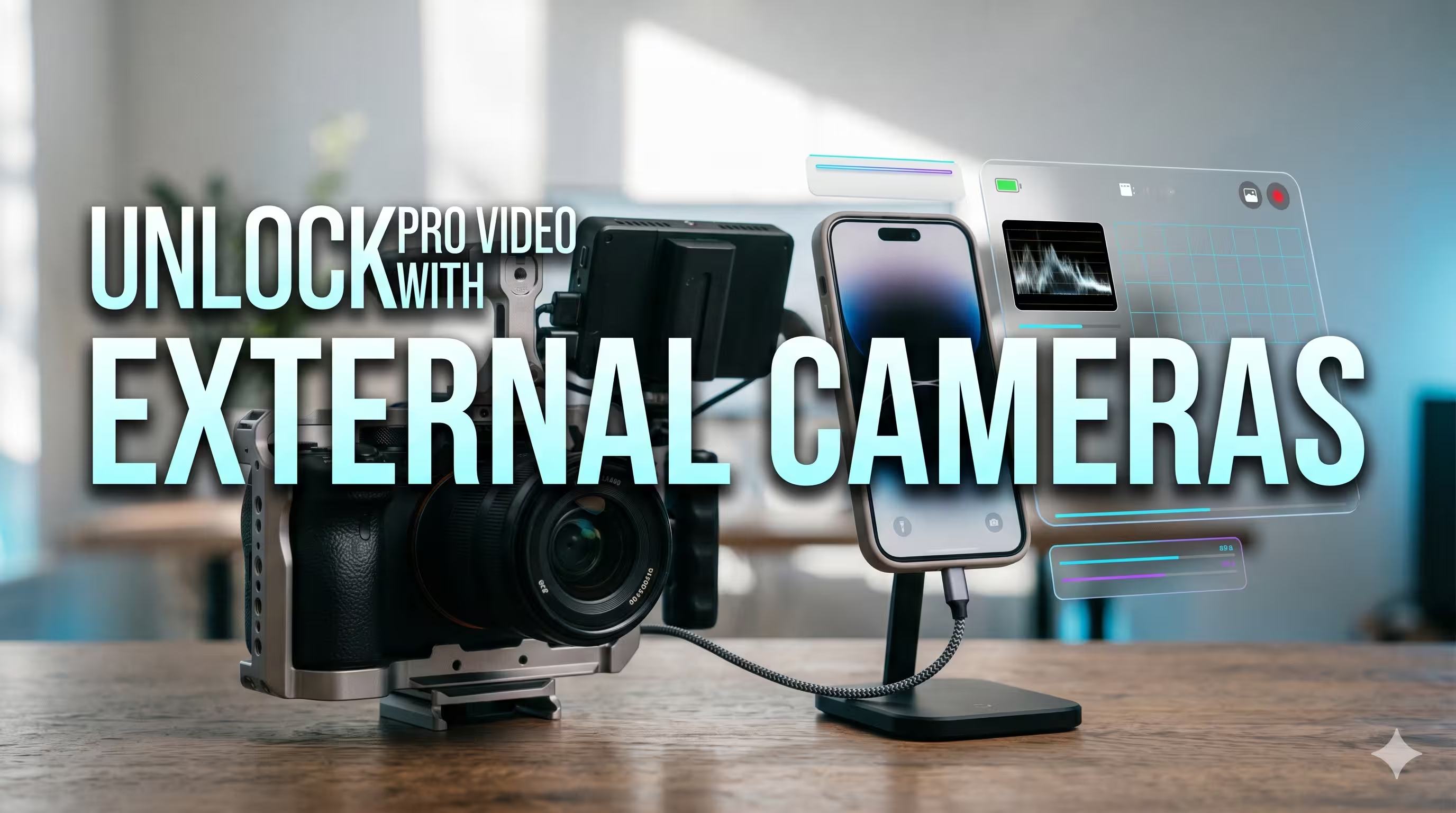
Most advice about external cameras for iphone starts and ends with Continuity Camera. That's useful advice for meetings. It's incomplete advice for a videocast.
A serious remote show has different requirements. You need stable capture, predictable sync, strong audio, clean monitoring, and footage that still looks good after you cut clips for YouTube, LinkedIn, and vertical formats. That changes the job. Your iPhone stops being just a camera and starts acting like part recorder, part monitor, part mobile production hub.
The catch is simple. Apple has made the iPhone excellent at being its own camera, and excellent at becoming a webcam for a Mac. It has not made the iPhone a plug-and-play field monitor and recorder for every external camera workflow people imagine. If you want a polished result, you need to build around what the iPhone does well and avoid the paths that look elegant on paper but break down in real production.
Beyond Continuity Camera The Pro Videocast Case
Continuity Camera is not the finish line for professional video. It's the convenience option.
Apple's Continuity Camera, introduced in 2022 with macOS Ventura and iOS 16, lets an iPhone act as a Mac webcam and delivers up to 1080p HD video at 30fps with features like Center Stage, Desk View, and spatial audio, according to Apple's rollout details summarized in this Continuity Camera review and benchmark discussion. That's a strong feature for calls, quick remote recordings, and lightweight livestreams.

It also has a ceiling. Continuity Camera is capped at 1080p 30fps even on capable models like the iPhone 15 Pro, and benchmarks cited in that same source note overheating after 20-30 minutes of continuous use. For a long-form videocast, that matters. You don't want your main visual pipeline relying on a mode that may get hot during the exact kind of recording your show depends on.
Where the quality jump happens
A dedicated camera changes three things at once:
- Lens choice: You can frame a flattering medium shot without physically shoving the phone across the room.
- Low-light behavior: A mirrorless or cinema-style setup usually gives you cleaner, more controlled footage in real offices and home studios.
- Manual consistency: Exposure, white balance, and focus can stay locked from intro to outro.
Those aren't cosmetic upgrades. They affect retention because the show looks deliberate instead of improvised.
Practical rule: If the episode is meant to live longer than the call itself, treat webcam features as backup tools, not the core camera plan.
When an external camera is worth it
An external camera setup makes sense when you're recording any of these:
- Executive interviews where brand perception matters.
- Founder-led thought leadership that needs to hold up on a large YouTube player, not just a laptop thumbnail.
- Remote guest shows where you want each host or guest to match a stronger visual standard.
- Repurposed content that will be cropped and color-adjusted later.
The iPhone is still valuable in this workflow. It can monitor, record, or serve as a second angle in the right app stack. But if you're chasing a broadcast-adjacent look, the external camera becomes the image engine and the iPhone becomes the control surface around it.
What works and what doesn't
What works is a system with one clear owner of the image path. Usually that's the dedicated camera.
What doesn't work is assuming the iPhone can accept any random camera input the way a laptop can. It can't. That misunderstanding is why so many setups drift into adapters, dongles, proprietary apps, and unstable sync.
The Three Paths to Connecting Your Camera
Busy teams usually lose time on the same mistake. They assume "external cameras for iPhone" means a simple plug-and-record workflow. For a professional videocast, it usually means choosing the least fragile signal path, then building the rest of the production around it.

I group the options into three paths: wired capture, wireless integration, and dedicated brand ecosystems. All three can function. Only one holds up consistently when the iPhone is part of a remote videocast workflow with long-form recording, separate audio, and footage that needs to be repurposed later for YouTube, LinkedIn, and short clips.
Path one wired capture
Wired capture is the production-first option.
The chain is straightforward: camera HDMI out into a capture device, capture device into the iPhone, then a compatible app receives the feed. It still takes testing because iPhone support is less mature than laptop capture, but this route gives you the cleanest shot at a stable session. Apple discussed external camera support through AVFoundation in its WWDC 2023 session on external camera support. That support matters on iPad, and it points to the direction Apple is taking with USB-C devices.
The gear list is familiar to any producer:
- A camera with clean HDMI out
- An HDMI cable
- A UVC-compatible capture device
- The right iPhone adapter or direct USB-C connection, depending on model
- An app that can recognize the incoming feed
In practice, the weak point is compatibility, not image quality. A setup can look perfect for five minutes, then fail on power draw, app recognition, or heat after a full interview. That is why I test the complete chain at session length, with audio running, screen brightness set where the operator will use it, and storage pressure that reflects a real shoot.
Wired also plays best with serious audio. If your microphone path is going through a mixer or interface instead of the camera body, pairing the capture chain with a podcast audio interface setup that gives you cleaner routing and monitoring usually makes post much easier.
Why producers keep coming back to it
For remote videocasting, wired capture gives you the most predictable foundation for:
- Stable video feed
- Lower practical latency
- Cleaner monitoring during record
- Fewer surprises when you sync camera footage with separate audio
That last point affects the whole workflow. If the host records locally, the guest joins remotely, and the iPhone is feeding a producer monitor or backup record, every extra variable creates more sync work later.
Path two wireless integration
Wireless can be useful. It is rarely the backbone I trust for a flagship show.
There are several versions of this path: wireless HDMI, app-based camera transmission, and network video tools that push a feed to the phone or through another device first. The appeal is obvious. Fewer cables, faster setup, more freedom in small rooms. The trade-off is timing.
In a videocast, timing problems show up fast. Audio may arrive before picture. One angle may lag behind another. A feed that seems acceptable for casual monitoring becomes annoying once you try to cut between cameras or line it up with a separately recorded microphone track. For a solo creator, that may be tolerable. For a producer trying to turn around a polished episode and several social edits, it creates preventable cleanup.
Wireless still has a place:
- Confidence monitoring
- Temporary B-camera placement
- Rooms where cable runs are difficult
- Lightweight field setups where speed matters more than exact sync
I would not choose it first for a two-host remote show, a guest interview, or any production that expects multicam switching and tight post timelines.
Path three dedicated ecosystems
This path looks cleanest on the box and gets restrictive fastest in production.
Some action cameras, compact creators' cameras, and gimbal systems offer polished iPhone apps with live preview, remote control, and direct transfer. That can work well for field recording or quick social content. It becomes less attractive once your show grows beyond a single operator and a single camera.
The issue is control. Brand-specific apps often decide how monitoring works, how files are named, what codecs are available, whether audio routing is flexible, and how easily footage moves into the rest of your edit pipeline. Those limits do not matter much on a casual shoot. They matter a lot when you are matching multiple sources, tracking takes across episodes, and sending assets to an editor on deadline.
This route fits best when:
- You need one camera and one operator
- You care more about mobility and speed
- The project is field-first content, not a studio-style videocast
- You can accept the app's rules on monitoring and file handling
Once the show adds a remote guest, separate audio capture, or a second angle, dedicated ecosystems often stop saving time.
iPhone External Camera Connection Methods Compared
How to choose without wasting time
Choose based on what happens when something goes wrong.
If a dropped feed will cost you a guest, a booked recording slot, or an editor's afternoon, start with wired capture. If the iPhone is serving a lighter role and mobility matters more than perfect sync, a dedicated ecosystem may be enough. If wireless is the only way to place the camera, keep its role limited and avoid building the whole show around it.
A simple rule works well:
- Pick wired for repeatable, edit-friendly production
- Pick wireless for convenience, not precision
- Pick a dedicated ecosystem for speed in smaller, simpler shoots
For professional videocasting, the connection method is not just a gear choice. It determines how much cleanup you buy for post.
Essential Apps and On-Device Settings
The hardware path only gets you halfway there. The rest happens on the screen.
The best apps for this job do two things well. They recognize the incoming signal without fuss, and they let you lock the recording variables that amateur setups leave on auto. That's where a lot of iPhone-based external capture workflows go soft. The camera feed may look good, but the app settings undercut it.

What the app needs to do
For external cameras for iphone workflows, I look for four capabilities first:
- External video recognition: The app has to reliably detect the capture input.
- Manual audio selection: You need to decide whether sound comes from the camera path, an interface, or the phone itself.
- Monitoring clarity: Clean meters and obvious status indicators matter more than fancy design.
- Codec and quality control: If the app hides key recording settings, it isn't a production app.
Some teams prefer apps built for streaming. Others want apps built for local recording. The right answer depends on whether the iPhone is your endpoint or just one part of a broader chain.
Use the iPhone's own camera on purpose
Modern iPhones already have strong internal imaging. Apple's current specs list a 48MP Main camera with ƒ/1.6 aperture and features like Photonic Engine, and note that pro apps can use the iPhone's own camera alongside a high-quality external feed in a multi-cam setup, according to Apple's iPhone camera specifications.
That creates a useful production move. You can run the external camera as the clean hero shot, then use the iPhone's own camera as a tighter or alternate angle without needing a second external body. That's one of the few iPhone advantages people underuse.
A smart setup doesn't ask the phone to become a full switcher rack. It asks the phone to do one or two jobs very well.
The settings that matter most
Resolution and frame rate
Match your app settings to the final edit target. Don't record mismatched frame rates unless you enjoy fixing motion and sync issues later.
If the external feed enters cleanly, keep everything aligned. A stable, consistent signal beats a theoretically higher spec that breaks halfway through recording.
Audio source
Here, many setups fail.
If you're feeding pro mics through an interface, lock that source and verify it before every session. Don't assume the app kept the same input from the previous shoot. If you're still deciding on the right front-end hardware, this guide on choosing an audio interface for podcasting is a useful companion.
Bitrate and compression
Use the highest stable setting your workflow can sustain. The key word is stable.
Busy teams often overfocus on top-end image quality and ignore transfer speed, storage, and edit responsiveness. The better choice is usually the setting you can record all day, ingest cleanly, and hand off without drama.
A preflight I wouldn't skip
Before recording, check these in order:
- Input confirmed: The app sees the external feed.
- Audio meters active: The correct source is moving.
- White balance locked: No color shifts mid-sentence.
- Focus strategy chosen: Manual if the subject position is fixed.
- Test clip recorded: Watch it back with headphones.
That last step saves sessions. Not because gear always fails, but because silent failures are common.
Building a Multi-Cam Videocast Workflow
A multi-cam videocast fails in post long before anyone notices it on set.
The footage can look fine during setup. Then the edit starts, one camera drifts a little, another shifts color, the guest audio lands a fraction late, and your team burns hours fixing problems that should have been prevented upstream. For remote shows, the primary job is not adding more angles. It is building a recording chain that stays in sync, holds up across a full session, and gives your editor clean material for YouTube, LinkedIn clips, and internal cutdowns.

Workflow one one external camera plus iPhone angle
For a lot of business shows, this is the right starting point.
Put the dedicated camera on the shot that has to carry the episode. Usually that means the host or primary speaker in a clean medium frame with the best lens, lighting, and exposure control. The iPhone handles the support angle. A tighter crop, a slight side angle, or a backup frame for edits all work well.
The mistake is giving both cameras equal status. That creates more grading work, more matching problems, and more reasons to cut when you do not need to. A better approach is simpler. One camera sets the visual standard. The iPhone gives the editor options.
Signal flow
A setup I trust looks like this:
- Primary camera records the hero shot
- Primary audio source feeds the master recording
- iPhone camera captures a secondary angle or safety shot
- Edit syncs every clip to the master audio
That workflow travels well. It works for solo hosts, remote interviews, and small studio teams that need a reliable show every week.
Workflow two two external cameras plus central audio
Add a second external camera only when the edit will benefit from it.
Good reasons include a host and guest in the same space, a dedicated wide shot for pacing, or a profile angle that makes short-form clips easier to cut. Bad reasons include owning another camera and wanting to use it.
Once you move to two external cameras, the iPhone should stop acting like the center of the system unless the exact setup has been tested under recording conditions. A switcher, recorder, or computer-based capture path usually gives you better control over sync, monitoring, and failover. The iPhone still has a job. It can record a utility angle, run notes, monitor confidence return, or serve as a quick backup record. It just should not carry responsibilities that belong to the main signal chain.
Audio sync decides whether the show feels professional
Viewers will tolerate a cut to a weaker angle. They will not tolerate lips that miss the words.
That is the trade-off busy teams need to respect. Wireless hops, app-based routing, and mixed record paths can all add delay. A small mismatch is enough to make a polished interview feel cheap. As noted earlier, latency in iPhone multi-cam workflows is a real limitation, especially once you add wireless links or conversion steps.
Use one clear audio master and build the rest of the session around it.
That usually means:
- Choose one master audio path
- Record scratch audio on every camera only for backup and sync reference
- Slate or clap at the top when the workflow is new or partially wireless
- Keep all final edits locked to the master audio, not the camera audio
If your team publishes on a schedule, post has to be designed for repeatability. A useful place to compare tools for cleanup, sync, and multicam edits is this guide to the best podcast editing software.
What a producer watches during the session
A good producer is not admiring the setup. They are scanning for failure points in real time.
Color drift is one. Monitoring lag is another. A camera can keep recording while the feed to the switcher freezes for a second, which is a different problem entirely. Backup records also get missed more often than teams like to admit.
During a live or live-to-tape session, I watch four things first:
- Did any camera change white balance or exposure mid-take
- Did the audio meter drop, clip, or switch inputs
- Did the monitoring return fall out of sync with the talent feed
- Did every backup start and keep rolling
A demo helps illustrate the moving parts in a compact setup:
A simple rule for busy teams
If the show has to ship every week, reduce camera complexity before you compromise the audio chain.
That choice pays off twice. Recording is more stable, and the edit moves faster because your team is shaping the conversation instead of repairing sync, matching three different looks, and patching around preventable failures. That matters even more when one recording session has to turn into a full YouTube episode, LinkedIn clips, and shorter social cutdowns from the same source material.
Production Best Practices for a Polished Show
The hardware gets you a signal. Production choices decide whether the show feels premium.
A lot of teams buy better cameras and keep the same weak setup habits. The result is sharper footage of the same bad lighting, flat composition, and distracting background. External cameras for iphone workflows only pay off when the image is shaped with intent.
Light the face first
Most office and home setups fail because they light the room instead of the subject.
Start with the face. A simple three-point approach still works well for videocasts: key light for shape, fill to control contrast, and a back light or edge light to separate the speaker from the background. You don't need a cinematic rig. You need consistency and direction.
If you're using an iPhone as part of the setup, remember that Apple's software features can help in some workflows, but they aren't a substitute for real lighting. Build the look in the room first.
Compose for edit flexibility
A polished show is framed for more than one output.
Your main shot should leave enough room for crops, lower thirds, and short-form reframes. That's especially important if your content team plans to turn long-form interviews into clips for LinkedIn or vertical social. A frame that looks perfect in a horizontal player can become awkward once you crop aggressively.
A few practical composition habits matter:
- Keep eye line slightly above center so the speaker looks engaged.
- Leave clean negative space for graphics and captions.
- Avoid busy shelves and bright windows unless they serve the brand.
- Separate wardrobe from background so the subject doesn't blend into the set.
Build a background on purpose
The best backdrop isn't always the most decorated one.
For executive and brand-led videocasts, I usually want a background that says something about the person or company without turning into a scavenger hunt. Books, product objects, framed brand colors, or a neat office depth layer can work. Random clutter doesn't.
Good backgrounds subtly support authority. If viewers spend the episode inspecting the shelf, the set is doing too much.
If you're refining the room itself, this guide on how to set up a podcast studio covers the broader environmental decisions that support cleaner video and audio.
Troubleshoot like a producer, not a hobbyist
When things go wrong during a session, speed matters more than elegance.
Use a short mental checklist:
- Signal issue: Re-seat cable connections first. Don't change three settings at once.
- Audio hum or buzz: Isolate power and audio chain changes one by one.
- Heat or battery concerns: External power and airflow should be part of setup planning, not an afterthought.
- Color mismatch: Lock white balance before recording, not after noticing it in the edit.
The goal is to restore the working path with the fewest variables changed.
Accessibility is still a blind spot
One part of this topic doesn't get enough attention. Accessibility.
Current iOS versions still lack native support for using wearable cameras as an external video source, which remains a barrier for visually impaired creators seeking hands-free POV options, according to this Apple community discussion about external camera limitations on iPhone. That's not a niche complaint. It's a real workflow gap.
For inclusive production teams, that means planning around today's limitations rather than assuming a wearable camera will integrate cleanly with an iPhone capture flow. If accessibility is part of the brief, test those needs early. Don't leave them to last-minute gear shopping.
Your iPhone Is Now a Production Hub
The strongest iPhone video setups stop fighting the device.
Instead of forcing the phone to behave like a full-size switcher, recorder, webcam, and multicam router all at once, the better workflow gives it a focused role. It might monitor an external feed. It might run a recording app. It might contribute its own strong built-in camera as a second angle. It might anchor a compact remote kit that travels easily and sets up fast.
That's the shift that matters.
Once you pair a reliable connection path, the right app settings, a disciplined audio plan, and a production setup that respects lighting and composition, the iPhone becomes more than a great pocket camera. It becomes the portable control center around a professional videocast workflow.
For busy teams, that's a competitive advantage. You get a system that's lighter than a traditional studio build, more flexible than a laptop-only call setup, and capable of producing footage that can stretch across long-form episodes, clips, social edits, and executive content libraries.
The caveat is the same one that runs through every serious production workflow. Reliability beats novelty. If a method looks clever but adds sync risk, heat risk, or app instability, it probably isn't worth it. Build around the path that survives repetition.
The best external cameras for iphone setups aren't the ones with the most moving parts. They're the ones that let you hit record with confidence, finish the session cleanly, and hand post-production footage that doesn't need rescuing.
If you want that kind of repeatable workflow without managing every adapter, camera angle, edit, and publishing step yourself, micDrop helps brands and leaders produce polished remote video podcasts end to end, from guided recording through multicam editing, motion graphics, and platform-ready repurposing.


